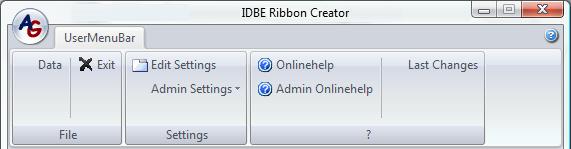
Is a converter for user-defined menus and toolbars from Access databases, Excel workbooks and Word documents to Ribbon XML for importing into the IDBE Ribbon Creator.
See also: System Requirements FAQ Download
After starting the program you may select from what kind of document you want to import your menu bar or toolbar.
Using the button "Select ..." you may choose from the following file types :
Access: „mdb“ and „mde“
Excel: „xls“ and „xlt“
Word: „doc“ and „dot“
After a files selection the appropriate office program is briefly opened and the existing menu bars and toolbars will be displayed.
Select the desired menu bars and/or toolbars which you want to be converted to a Ribbon XML in the IDBE Ribbon Creator.
Using the button „Reset Selection“ all selected menu bars and/or toolbars will be deselected.
Clicking the button „Hide Options“ further options will be hidden.
Clicking the button „Show Options“ further options will be displayed.
Button „Start Conversion“:
Here you start the convertion of the selected Menu bars and/or tools bars with the requested options. Clicking the button allows you to define a file name for the Ribbon XML that will be created.
A completion message will appear after conversion.
Now you may start the IDBE Ribbon Creator to follow these steps
- Application Button „AG“
- Open
- … a XML file
to load und edit your converted XML file.
Options:


User-defined menu bar and toolbar in a Office 2003 Program.
Use captions from menu bars as:
- New Group Caption in Tab
For each menu in the menu bar / toolbar a new group on the ribbon tab will be created.
- New Tab-Caption in Ribbon (Only one menu bar can be converted)
For each menu in the menu bar / toolbar a new tab on the ribbon will be created.
Use for menu bar captions:
If a menu should be used on a menu bar and/or toolbar you may select what kind of Ribbon control you want to use.
Menu Controls
A menu control is used on the ribbon.
SplitButton Controls
A SplitButton control is used on the ribbon.
Convert (Images and labels only):
If built-in elements from Office programs (built-in menus and/or built-in buttons) are used with your user-defined menu bars and/or toolbars you may choose whether they should be converted or not.
- „Selected Office Program - “ Controls
Only button elements will be converted, menus remain disregarded.
Tip: User-defined buttons from Excel workbooks will only be converted if the option is checked.
- „Selected Office Program - “ Menus
All menus including all buttons will be converted.
Button „Select path for user-defined images“:
Select a folder where the user-defined images will be stored.
All images in the selected folder will be stored as an PNG bitmap with transparency.
Tip: User-defined images from Excel workbooks could not be extracted.
Special Thanks:
I would like to thank
• Jens Schilling
• Sascha Trowitzsch
• Peter Doering
for support and co- development.